
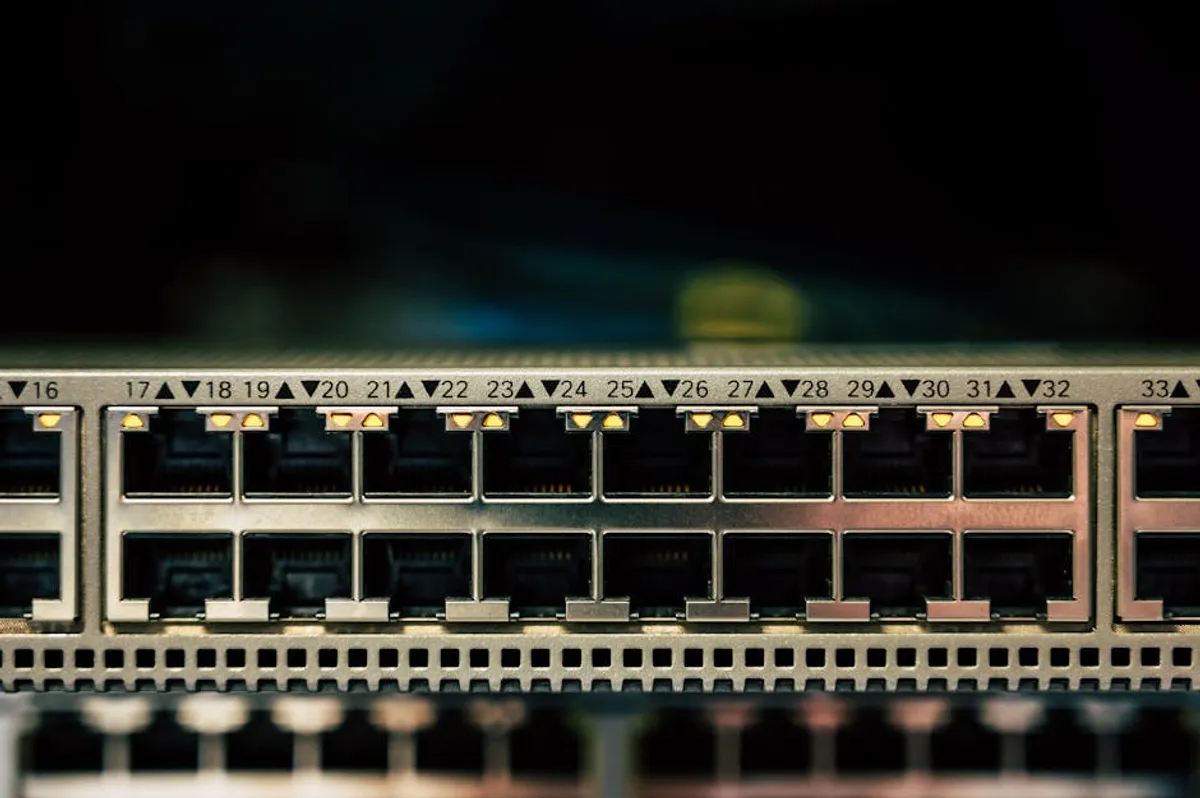
Accessing your home router's administrative interface is a fundamental task for managing your network, optimizing performance, and safeguarding your digital environment. The IP address 10.0.0.1 serves as a common gateway for many home users to configure their internet connection, especially those with equipment from specific internet service providers. Understanding how to log into this interface provides direct control over your Wi-Fi settings, security protocols, and connected devices, moving beyond basic connectivity to proactive network management.
What 10.0.0.1 Represents for Home Networks
The IP address 10.0.0.1 is a private IP address, part of the 10.0.0.0/8 private network range, which is reserved for local area networks (LANs) and not routable on the public internet. For many home users, particularly those with Xfinity/Comcast-issued modems and routers, 10.0.0.1 is the default gateway address. This means it is the address assigned to your router, acting as the central hub for all devices on your home network to communicate with each other and with the internet. When you type 10.0.0.1 into a web browser, you are instructing your computer to connect directly to your router's internal web server, which hosts the administrative control panel.
Common Use: Primarily used by Xfinity/Comcast gateways for home network administration.
Essential Preparations Before Logging In
Before attempting to log into your router at 10.0.0.1, a few preliminary steps ensure a smoother process and help troubleshoot potential issues:
- Direct Connection: For the most stable connection, especially during initial setup or troubleshooting, connect your computer directly to the router using an Ethernet cable. While Wi-Fi can work, a wired connection eliminates potential wireless interference or connectivity drops as a source of login failure.
- Power Check: Ensure your router is powered on and fully booted. Most routers have indicator lights that stabilize once the device is ready. Wait a few minutes after plugging in or restarting the router before attempting to log in.
- Locate Login Credentials: The default username and password are the most common hurdle. These are typically found:
- On a sticker on the bottom or side of the router.
- In the router's manual or documentation.
- On a card provided by your internet service provider (ISP) during installation.
- Common default combinations include
admin/password,admin/admin, or a blank password. Note that for 10.0.0.1, the default username is oftenadminand the default password may bepasswordor a unique string printed on the device.
- Browser Choice: Use a modern web browser (Chrome, Firefox, Edge, Safari) and ensure it is updated. Occasionally, browser extensions or cached data can interfere; trying an incognito/private browsing window can often bypass these.
Step-by-Step Login Process to 10.0.0.1
Once preparations are complete, the login process is straightforward:
- Open a Web Browser: Launch your preferred web browser on a device connected to your router's network (either via Ethernet or Wi-Fi).
- Enter the IP Address: In the address bar of your browser, type
10.0.0.1and press Enter. Do not include "http://" or "www." before the IP address. - Enter Credentials: A login prompt will appear, requesting a username and password. Enter the credentials you located in the preparation step.
- Access Router Interface: Upon successful entry, you will be directed to your router's administrative control panel.
Pro Tip: Immediately after logging in for the first time, or if you are using default credentials, navigate to the router's security settings and change the default administrative password. Using a strong, unique password significantly enhances your network's security against unauthorized access.
Key Settings Accessible Through 10.0.0.1
Once logged into your router's interface, you gain control over various network parameters that directly impact performance, security, and user experience:
Wi-Fi Configuration
This section allows you to manage your wireless network settings. You can change your Wi-Fi network name (SSID), update your Wi-Fi password for enhanced security, and select different security protocols (WPA2/WPA3 are recommended). You can also separate 2.4 GHz and 5 GHz bands, or enable guest networks to provide internet access without granting full network access to visitors.
Benefit: Improves network security, customizes network identification, and manages guest access.
Parental Controls
Many routers offer parental control features to manage internet access for specific devices or users. This can include setting time limits for internet usage, blocking access to certain websites or content categories, and scheduling internet availability. These controls are configured by identifying devices via their MAC addresses or assigned IP addresses.
Benefit: Manages screen time and content access for children on the network.
Port Forwarding
Port forwarding directs incoming internet traffic to a specific device on your local network. This is crucial for applications that require direct connections, such as online gaming servers, security camera systems, or specific peer-to-peer applications. Configuring this correctly ensures external services can communicate with internal devices.
Benefit: Enables specific applications and services to function correctly across the internet.
Firmware Updates
Router firmware is the operating software of your device. Manufacturers regularly release updates to fix bugs, improve performance, and patch security vulnerabilities. Accessing the router interface allows you to check for and apply these updates, which is a critical step in maintaining network health and security.
Benefit: Enhances security, stability, and performance of the router.
Troubleshooting Common Login Issues
If you encounter difficulties logging into 10.0.0.1, consider these common solutions:
- Incorrect IP Address: Double-check that you typed
10.0.0.1exactly. A common mistake is typing10.0.0.0.1or10.0.1. - Wrong Credentials: Verify the username and password. Remember they are case-sensitive. If you've previously changed them and forgotten, you might need to perform a factory reset.
- Router Not Responding: If the page won't load, try restarting your router by unplugging it for 30 seconds and then plugging it back in. Also, ensure your device is connected to the correct network.
- Browser Issues: Clear your browser's cache and cookies, or try a different browser or an incognito/private browsing window.
- Firewall Interference: Temporarily disable any software firewalls on your computer to see if they are blocking access.
Warning: Performing a factory reset on your router will erase all custom settings, including Wi-Fi names, passwords, port forwarding rules, and parental controls. You will need to reconfigure your network from scratch. Only perform a factory reset as a last resort, usually by pressing a small recessed button on the router for 10-30 seconds.
Securing Your Home Network After Login
Once you have access to your router's administrative panel, prioritizing security is paramount. Beyond changing the default password, consider these practices:
- Regular Password Updates: Periodically change your Wi-Fi password and your router's administrative password.
- Disable Remote Management: Unless absolutely necessary, disable remote management features that allow access to your router's settings from outside your local network. This reduces attack vectors.
- Enable Firewall: Ensure your router's built-in firewall is active. This provides a first line of defense against unwanted internet traffic.
- Review Connected Devices: Periodically check the list of connected devices in your router interface to identify any unauthorized connections.
- Keep Firmware Updated: As mentioned, regularly check for and apply firmware updates to patch vulnerabilities.
Maintaining Control Over Your Network
Regularly accessing and managing your router settings via 10.0.0.1 is not just about initial setup; it's an ongoing process for maintaining a secure, efficient, and tailored home network. From updating Wi-Fi credentials to configuring specific device access, your router's administrative interface is the central point for exercising control over your digital environment. Proactive management ensures your network adapts to your needs and remains protected against evolving threats.
Frequently Asked Questions
Q: What if 10.0.0.1 doesn't work for my router?
A: While 10.0.0.1 is common for Xfinity/Comcast, other routers use different default IPs like 192.168.1.1 or 192.168.0.1. Check your router's sticker or manual to confirm the correct IP address for your specific model.
Q: Is it safe to change my router's settings?
A: Yes, it is safe and often recommended to customize your router settings, especially changing default passwords and Wi-Fi names. However, be cautious when altering advanced settings like port forwarding or firewall rules if you are unsure of their impact, as incorrect configurations can disrupt your internet connection.
Q: How often should I update my router's firmware?
A: It's good practice to check for firmware updates every few months, or whenever you notice a notification from your router manufacturer or ISP. Updates often include security patches and performance improvements that are crucial for network health.
Q: Can I access 10.0.0.1 from my phone or tablet?
A: Yes, as long as your phone or tablet is connected to the router's Wi-Fi network, you can open a web browser on your mobile device and type 10.0.0.1 into the address bar to access the login page.